
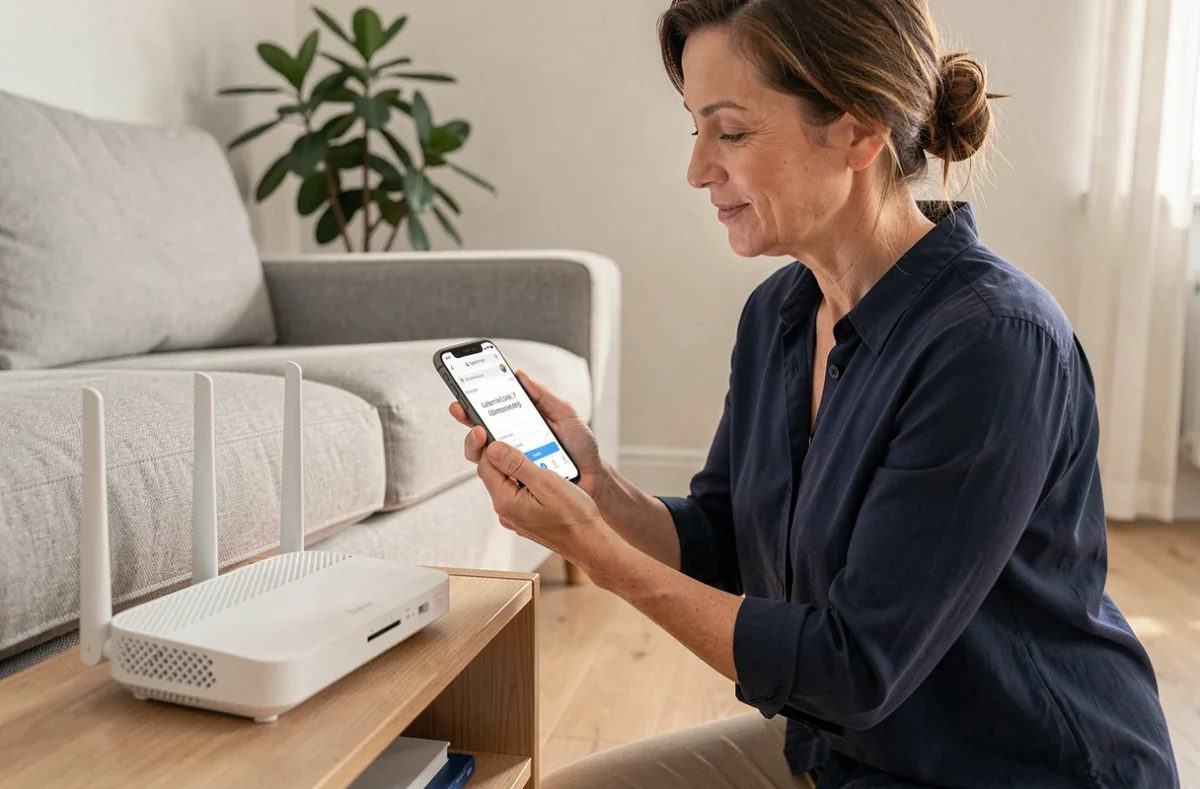
The administration interface of your internet box is a control panel accessible from a web browser, at a local IP address like 192.168.1.1. It allows you to modify Wi-Fi network settings, manage connected devices, or configure connection security. Accessing this interface without precautions exposes the home network to unwanted changes or intrusions.
Local attack surface: what the administration interface exposes
When a device connects to the local network, it can reach the box’s interface by default. This includes computers, tablets, but also less monitored connected devices.
A practical report relayed by Kaspersky showed that a compromised TV decoder or connected box could serve as a relay to the router’s administration panel, even if it is not exposed on the internet. An attacker exploiting this type of device then gains access to DNS settings, the Wi-Fi password, and port forwarding.
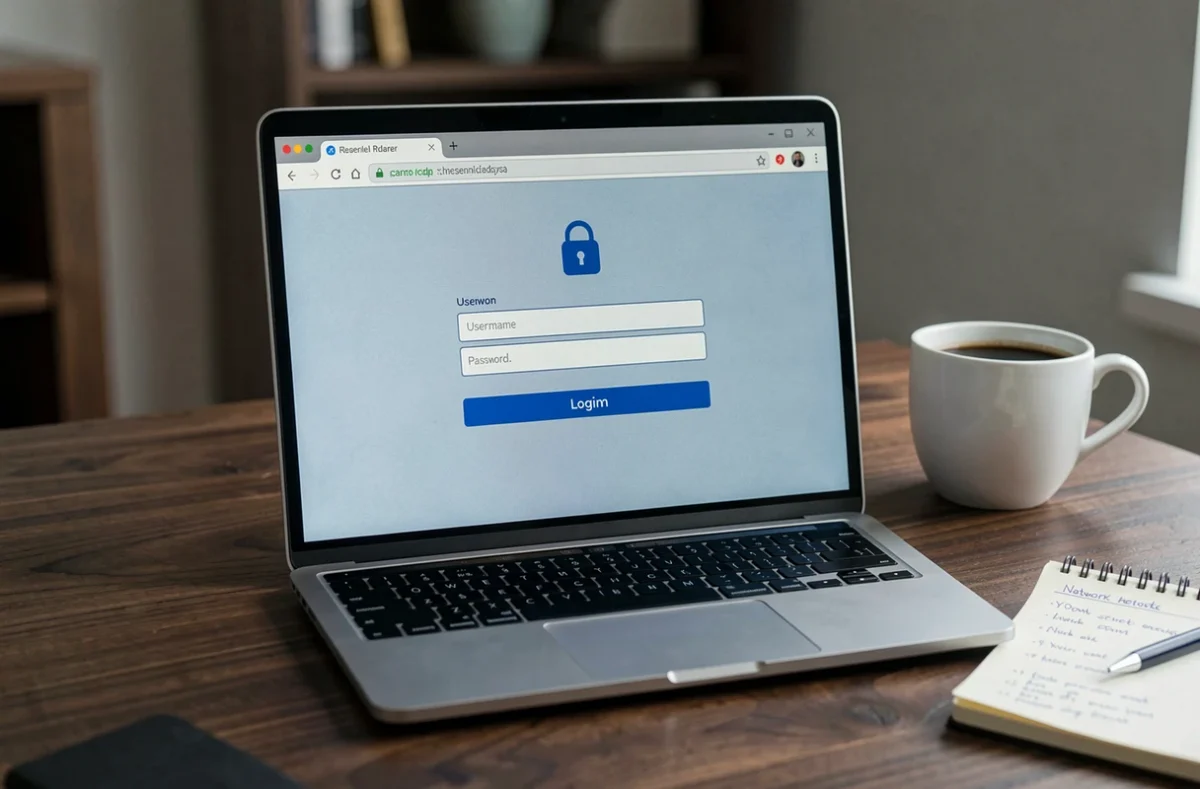
The first measure is to change the default administration password. The credentials provided with the box (often “admin” / “admin” or a code printed on the label) are publicly documented. Replacing them with a long and unique password closes the most common attack vector. Several tutorials offered by Hebdo Linux detail this procedure step by step according to box models.
Box IP address and access according to the provider
Each operator assigns a default local IP address to its box. Entering it in the browser’s address bar (not in the search field) opens the authentication page of the interface.
- Livebox Orange: enter 192.168.1.1 or http://livebox/ in the browser, then log in with the admin account and the custom password or the one printed on the box’s label.
- Bbox Bouygues Telecom: the default address is 192.168.1.254, accessible from any device connected to the wired or Wi-Fi local network.
- Freebox (Free): the local interface is accessible via mafreebox.freebox.fr or the assigned IP address, with specific authentication configured from Freebox OS.
- SFR Box: the address 192.168.1.1 provides access to the web administration interface, after entering the credentials configured during installation.
If the page does not display, check that the device is properly connected to the box’s network (and not to a mobile hotspot). An up-to-date browser is required: recent interfaces may refuse connections from outdated versions of Firefox or Chrome.
Securing remote access and the box’s cloud account
Remote administration and the provider’s cloud account constitute two distinct attack surfaces. Disabling remote access to the local interface is not enough if the box remains manageable via a mobile app or an online portal.
A compromised operator account (reused password, lack of two-factor authentication) allows a third party to modify the box’s settings without being physically on the network. The solution: enable multi-factor authentication on the operator’s customer account when the option exists, or use a passkey if offered.
Disable remote administration
In the box’s interface, an option generally allows you to permit or block access from outside the local network. Disable this feature if you do not have a specific need for it. It opens a port on the internet and exposes the login page to brute force attempts.
Guest Wi-Fi network: check the actual isolation
Most recent boxes offer the ability to create a guest Wi-Fi network. The idea seems simple: visitors connect to a separate network, without accessing household devices.
In practice, a guest network does not always guarantee isolation from the main network. Depending on the models, it may prevent guest devices from communicating with each other while leaving open access to printers, NAS, or cameras connected to the local network. The only way to verify is to connect a phone to the guest network and attempt to access the IP address of a device on the main network.
Settings to check in the interface
- Ensure that the “client isolation” or “AP isolation” option is enabled in the guest network settings.
- Assign a distinct password to the guest network, different from the main network.
- Limit the bandwidth allocated to the guest network if the box allows it, to prevent a device from saturating the connection.
DNS and firmware: two often overlooked settings in the interface
The administration interface allows you to modify the DNS servers used by all devices on the network. By default, the box uses the operator’s DNS. Replacing them with third-party servers (like those offered by filtering services) can speed up name resolution or block certain malicious domains.
The box’s firmware generally updates automatically. However, check in the interface that the latest firmware version is indeed installed. A router whose internal software is no longer maintained may contain vulnerabilities exploitable from the local network. If your box has not received any updates for several years, the question of replacement arises.
Accessing the interface of your box remains a quick operation, but leaving it in its factory configuration is akin to leaving the front door of the network ajar. Custom admin password, remote access disabled, tested guest network, and verified firmware: these four points cover the majority of common risks on a home network.